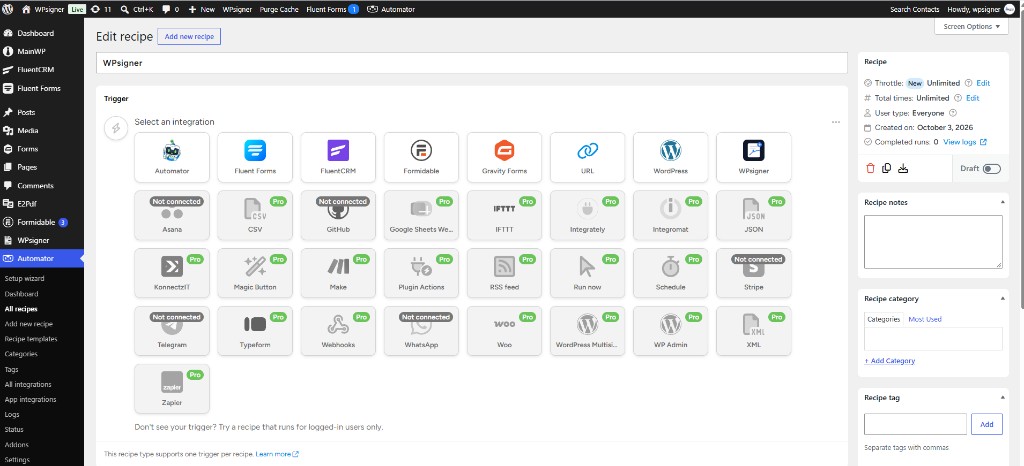
WPsigner is now a WPsigner integration in the Uncanny Automator directory.
That listing is the practical change. A signed contract no longer ends in an inbox you have to check. The signature can enroll someone, tag a contact, notify a channel, or file the PDF. And the reverse works too: an order, a form entry, or any other Automator trigger can create and send the contract.
Recipes run on your WordPress server. There is no Zapier hop and no remote app connection. The document, the signers, and the audit trail stay on that site.
What this unlocks
Before this addon, connecting WPsigner to the rest of a WordPress site meant a webhook, an API key, or a one-off plugin. Automator already sits in the middle of the plugins many sites use. WPsigner now speaks that language.
Five things change for day-to-day work:
- The next step is automatic. Completed, declined, viewed, expired: each one can start a recipe without someone copying the signer’s email into another tool.
- Contracts go out from events you already track. A paid order or a form submission can create a document from a template, prefill it, and send it.
- Guest signers still count. Most people who sign are not logged in. Those triggers are Everyone recipes, so the workflow does not depend on a WordPress account.
- The message can carry the proof. Tokens pass the document title, the signer, the secure download URL, and the audit URL into Slack, email, or the next action.
- The file stays on your site. A cloud recipe sends an event to someone else’s server. This one does not. Useful when the contract should not leave the WordPress install just to trigger a tag or a course.
One addon covers that. You do not build a separate connector for WooCommerce, then another for LearnDash, then another for the CRM.
When a document moves, the site can move with it
Pick WPsigner in the recipe builder and the trigger sentences are the life of a contract: created, sent, viewed, signed, completed, declined, expired, cancelled. Reminders, the finished PDF, a cloud backup, and Stripe payment events (succeeded, failed, refunded) are triggers too. A logged-in WordPress user signing is its own trigger. Every trigger can watch one template or any template.
That is enough to cover the work that usually happens after a signature:
- Onboarding. The document is completed, so enroll the signer in the LearnDash course and tag them in FluentCRM.
- A decline. Post the signer and the admin URL to Slack while the deal is still warm.
- Someone opened it. A “viewed” trigger tells the owner the contract is no longer sitting unread.
- It expired or was cancelled. Alert the team instead of discovering it on Monday.
- The PDF is ready. When the completed file is generated, or when it lands in Google Drive, Dropbox, OneDrive, or S3, send the file URL to Slack, Teams, or email.
- Payment and signature in one flow. A successful Stripe payment can start the next step. A failed or refunded payment can notify someone before the contract is treated as done.
“Signed” and “completed” are different. Signed fires for that signer. Completed fires when the document is finished. Use signed when one person out of three has signed and the team should know. Use completed when the course, the tag, or the role change should wait for everyone.
When something else happens, send the contract
Actions run from any Automator trigger, not only from WPsigner. Create a document from a template and prefill it. Send it. Remind. Message Slack, or send the reminder through WhatsApp, SMS, Telegram, or Teams. Add a signer, add a tag, set an expiration, cancel the document, or read the signer list back into the recipe.
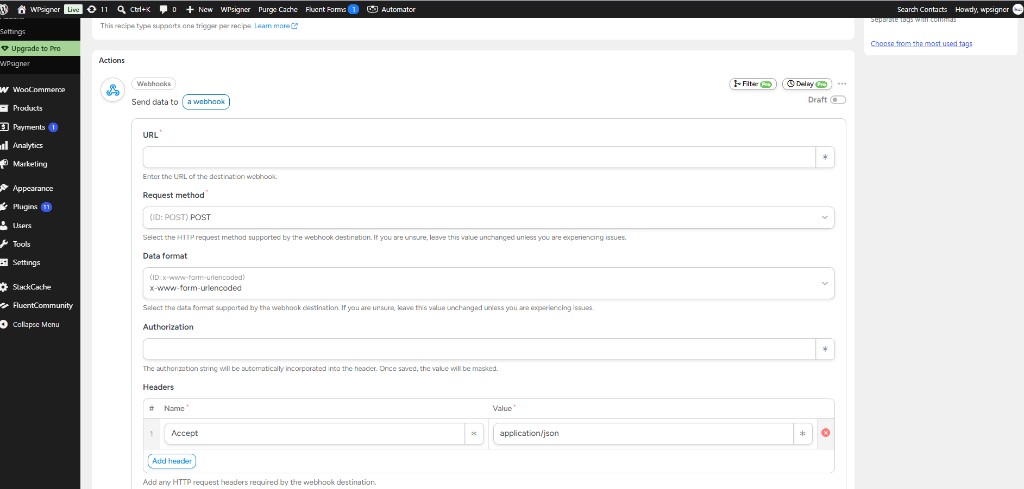
The combinations that show up most often:
- WooCommerce. The order is paid. Create the service agreement from a template, fill the billing name and email, and send it.
- Forms. A Gravity Forms, WPForms, or Fluent Forms entry arrives. Wait if you need a review, check a condition, then create the document.
- Whatever you already automated. A new member, a course event, a role change: if Automator can see it, that trigger can create or send a WPsigner document. WPsigner does not need its own feed for that plugin.
Native WooCommerce and form feeds still exist. Use those when the form or the order should produce a signing request and nothing else. Use Automator when the same flow also needs a delay, a condition, a CRM tag, or a second plugin.
A delay, a condition, a loop
The free Automator plugin is enough for triggers, actions, and tokens.
Automator Pro adds the branching people ask for next. Conditions can require a document status, a template, a tag, or a WordPress user. Loops walk the signers. The documented example: a document is sent, the recipe waits two days, then each person who has not signed gets a WhatsApp reminder.
Hide signing URLs and field values from tokens and logs in the addon settings if those should not appear in Automator’s log.
What you need
WPsigner Lite or Pro, on the same site as Uncanny Automator. Filtering a trigger by template uses WPsigner 3.x or later. WordPress 5.8+ and PHP 7.4+.
- Activate Uncanny Automator and WPsigner.
- Install WPsigner for Uncanny Automator from the Account Portal, or from WPsigner → Addons.
- Open Automator → Recipes. Use Everyone unless the recipe needs a logged-in user. Add a WPsigner trigger or action, then the other apps.
Directory listing: automatorplugin.com/integration/wpsigner.
Product page: WPsigner for Uncanny Automator. Triggers, actions, tokens, and the six recipe walkthroughs: documentation.
WPsigner for Uncanny Automator is an independent addon by WPsigner. It is not affiliated with, endorsed by, or sponsored by Uncanny Owl. Uncanny Automator is a trademark of its respective owner.